
A remote for Google TV and Android TV, on iPhone and iPad
Beam is an independent app, not affiliated with or endorsed by Google.
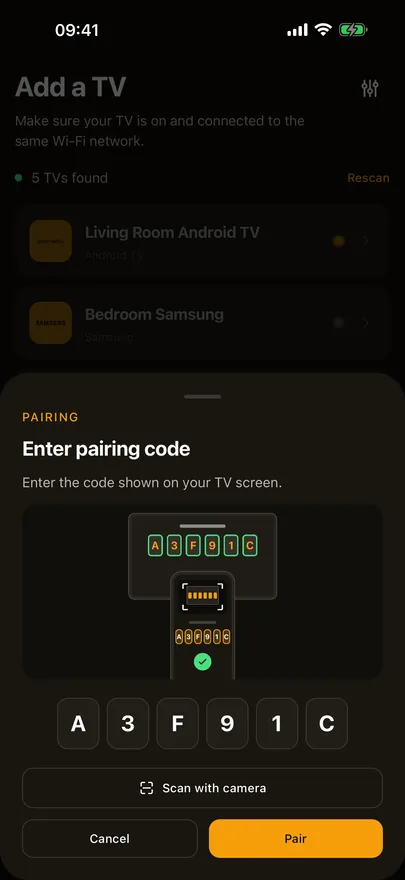
Beam controls Google TV and certified Android TV devices with Google services over Wi-Fi. The first time, the TV shows a six character code. Type it in or scan it with the iPhone's camera, and Beam keeps the pairing on your phone so it reconnects without asking again. No infrared, no extra hardware.

The basic remote stays free. Some features are part of Beam Premium. Checked against Beam 1.13.0, November 2026.
Which devices work
- Chromecast with Google TV and NVIDIA SHIELD.
- TVs with Google TV or Android TV built in, from TCL, Sony, Hisense, Philips, Xiaomi, Sharp and others, as long as they carry Google services.
- Boxes from internet providers that support Google's remote apps. Some of these boxes never show a pairing code, because the provider does not allow other remote apps, and Beam tells you so rather than leaving you waiting.
- Older Android TV boxes that carry only Google's earlier remote service. These show a four character code and get the remote keys, without typing, the app list, the input list or turning on from Beam.
- Android-based TVs without Google services are a different story: phone remote apps cannot control them, and they usually work only with their infrared remote.
How to pair
- 01
Put your iPhone or iPad on the same Wi-Fi as the TV, not a guest network, and allow Local Network access when Beam asks.
- 02
Sign in with Apple or Google, then pick the TV from the list Beam shows. Turn the TV on first, and if the code should appear on a streaming box, switch the TV to that box's input.
- 03
The TV shows a six character code. Type it in, or tap Scan with camera and point the camera at the screen. If a code is refused, the TV shows a new one to try.
What you can do
- D-pad, OK, Back and Home, volume and mute, channel up and down, input, power, and play, pause, rewind and fast forward.
- Swipe on the trackpad instead of pressing arrows, which is quicker through long rows of tiles.
- Type into the TV's search boxes and sign-in fields with the iPhone keyboard.
- Open your streaming apps from quick launch, or anything the TV can start from All apps.
- Send photos and videos from your phone to the TV over Chromecast built-in. The TV pulls them from your phone over your Wi-Fi, and nothing is uploaded to Beam.
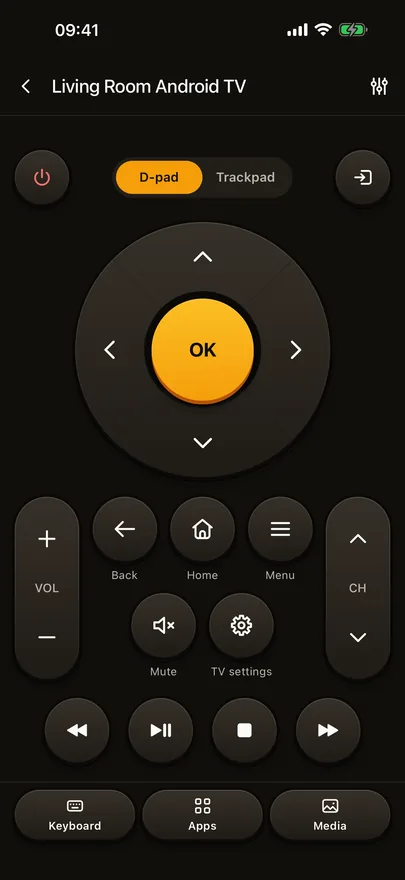
Trackpad, keyboard, quick launch, the input list and photo and video cast are part of Beam Premium. The basic remote stays free.
If it doesn't work
The code never appears on the TV.
Check that the TV is on and showing the device you are pairing. A streaming box draws its code on whatever input it is connected to, so the TV has to be on that input. Some boxes from internet providers never show a code at all; Beam says so after a few seconds and names that as the likely reason.
Beam doesn't find my Google TV.
The phone and the TV have to be on the same Wi-Fi network, and guest or public networks usually stop devices from seeing each other. Also check that Local Network access is on for Beam in iOS Settings.
My TV runs Android, but Beam can't see it.
Beam needs a certified device with Google services. Budget Android TVs without Google services cannot be controlled by any phone app.
Casting a photo asks me to turn Chromecast built-in on.
Photos and videos go through the TV's Chromecast built-in, so it has to be switched on in the TV's settings. A TV with no internet connection may not show a photo, even though the remote works without one.
Other TVs Beam controls
Sony, VIZIO, Sharp, Panasonic, TCL, Vestel, Whale OS and Orange are on the full list of supported TVs, and the Google TV row has the short version of this page.