
A remote app for Samsung TVs, on iPhone and iPad
Beam is an independent app, not affiliated with or endorsed by Samsung.
Beam controls Samsung Tizen TVs and older Samsung smart TVs, including most 2014 and 2015 sets, over Wi-Fi. The first time, the TV shows a request to allow Beam. Accept it with the TV's own remote, and Beam reconnects after that without asking again. A 2014 or 2015 set shows a four digit PIN instead.

The basic remote stays free. Some features are part of Beam Premium. Checked against Beam 1.13.0, November 2026.
Which devices work
- Samsung smart TVs running Tizen.
- Older Samsung smart TVs that take commands on the network, from before Tizen.
- The 2014 and 2015 H and J series sets. These pair with a four digit PIN the TV shows, and Beam asks for it.
- Not the entry-level 2014 and 2015 models of the J4, J5, H4 and H5 lines, such as the J4290, J4303, J4500, J5200, J5290, J5300, H4203, H5203 and H5303. They show a PIN page, but refuse every code, so Beam cannot pair them.
- Some recent sets, including some 2024 OLEDs, that turn away the usual connection. The TV asks once to allow Beam, and these sets get the remote keys, without quick launch or typing.
How to pair
- 01
Put your iPhone or iPad on the same Wi-Fi as the TV, not a guest network, and allow Local Network access when Beam asks.
- 02
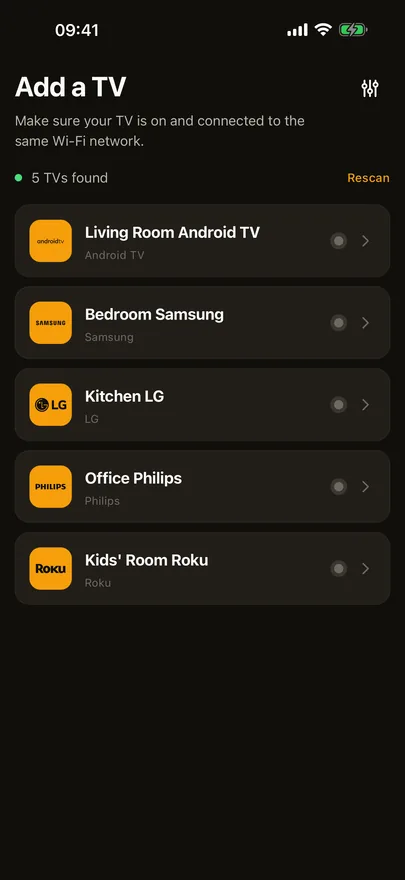
Sign in with Apple or Google, then pick the Samsung from the list Beam shows. Keep the TV switched on.
- 03
The TV shows a request to allow Beam iPhone, or Beam iPad on an iPad. Choose Allow with the TV's own remote. On a 2014 or 2015 set, type in the four digit PIN the TV shows.
What you can do
- D-pad, OK, Back and Home, volume and mute, channel up and down, input, power, and play, pause, rewind and fast forward.
- Swipe on the trackpad instead of pressing arrows.
- Open your streaming apps from quick launch.
- Send photos and videos to many Samsung sets through the TV's built-in media sharing. The TV pulls them from your phone over your Wi-Fi.
- Turn the TV back on from Beam, once Power On with Mobile is switched on under Network, Expert Settings on the TV.
- Typing from the iPhone keyboard is not available on Samsung Tizen sets.
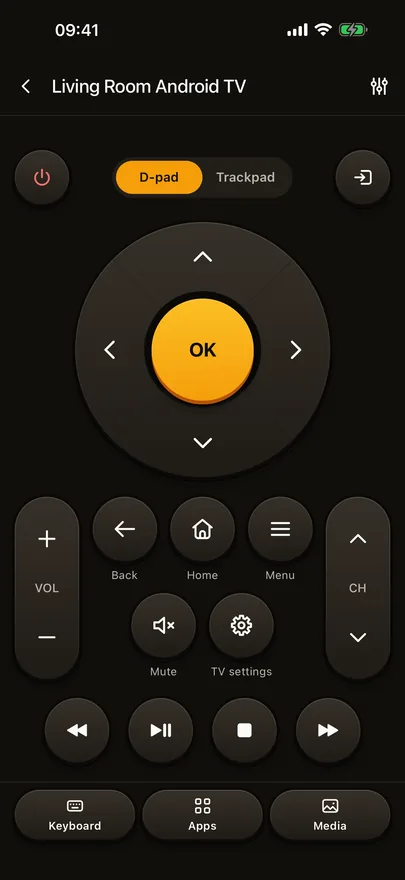
Trackpad, keyboard, quick launch, the input list and photo and video cast are part of Beam Premium. The basic remote stays free.
If it doesn't work
My Samsung refused the connection.
The TV keeps a list of devices it allows. On the TV, open External Device Manager, then Device Connection Manager, then Device List, and allow Beam iPhone, or Beam iPad on an iPad. External Device Manager is under Connection on newer TVs and under General on older ones. Then try again. If the TV refuses again, Beam shows a picture of the way into those settings.
Beam says it could not reach my Samsung.
Most often the TV is in standby, where it turns every connection away. Turn it on with its own remote, then try again.
Beam asks me to accept on the TV again.
A Samsung can stop honouring an earlier pairing. Beam then shows Accept on TV: choose Allow on the TV screen with the TV's remote, and the remote carries on.
The request appeared, but Beam stopped waiting.
Nobody chose Allow in time. Try again with the TV switched on, and choose Allow on the TV screen with the TV's remote as soon as the request appears.
Beam can't turn my Samsung on.
Beam wakes a paired TV over the network only if the TV allows it. Turn on Power On with Mobile under Network, Expert Settings on the TV. If the TV does not come on within half a minute, Beam says so and names the setting.
A photo won't show on my Samsung.
If the TV refuses the photo, allow this phone in the TV's device or sharing settings and try again. If your TV cannot show photos from Beam, the Media button does not appear.
Other TVs Beam controls
Sony, VIZIO, Sharp, Panasonic, TCL, Vestel, Whale OS and Orange are on the full list of supported TVs, and the Samsung row has the short version of this page.